

How to Diagnose Google Crawling Problems
Google crawling problems should be diagnosed in order: first confirm whether Googlebot cannot access the page, whether Google has crawled it but not indexed it, or whether the page is indexed but not ranking for the searches you care about. Start with a small set of important URLs, then use Search Console Crawl Stats and URL Inspection before changing robots.txt, sitemaps, redirects, hosting, DNS, or firewall settings. A crawl or indexing request can help Google discover a URL, but it does not promise immediate inclusion or search visibility. The goal is to isolate the blocker before commissioning a broad audit, changing your site structure, or assuming that “crawl budget” is the problem.
Quick answer: diagnose access before assuming rankings
If an important page is not bringing in search traffic, do not start by rewriting the page or ordering a full site rebuild. Start by answering one simple question: can Googlebot reach, process, and understand the URL you want Google to evaluate?
A practical diagnostic sequence looks like this: define the affected pages, separate crawling from indexing and ranking, review Search Console Crawl Stats, inspect representative URLs, test robots.txt, validate the XML sitemap, check HTTP responses and server availability, investigate DNS and firewall access, then review internal links, canonical tags, and indexing directives.
This sequence matters for business owners, healthcare practices, law firms, and agencies because the wrong diagnosis wastes time. A page that returns a server error needs a different fix than a page that is accessible but canonicalized to another URL. A page that is indexed but not ranking needs a different strategy than a page Googlebot has never reached.
What crawling, indexing, and ranking mean
Crawling is the process of Googlebot discovering, requesting, and processing URLs and resources. When Googlebot not crawling appears to be the issue, you are asking whether Google’s crawler can find and fetch the page at all.
Indexing is Google’s evaluation of a crawled page to decide whether it can be stored and considered for Search. A URL can be crawled without being indexed. Google’s documentation on Search Essentials explains that meeting technical requirements does not guarantee crawling, indexing, serving, or ranking.
Ranking and serving happen after a page is eligible to appear for a query. A page may be indexed but still not appear prominently because competitors are more relevant, the query intent is different, the page is weak, trust signals are thin, or Google chooses a different page from your site.
That distinction prevents a common mistake: treating every missing lead, impression, or keyword as a crawling issue. For a small business site, a priority service page may be accessible to Google but not compelling enough to rank. For a large site, the issue may be that Google spends too much time on duplicate or low-value URLs. The first job is to classify the symptom accurately.
Start with a representative URL set
Do not diagnose the whole website at once. Choose a small sample of URLs that reflect the business impact and the technical patterns on the site. This keeps the work focused and helps you distinguish one broken page from a template, hosting, or migration issue.
Your sample should usually include:
- The homepage.
- One or two important service or practice-area pages.
- Key location pages, if local visibility matters.
- Recent pages that have not appeared in Search.
- Pages changed during a redesign, migration, CMS update, or URL cleanup.
- One URL from each important template, such as blog posts, service pages, category pages, location pages, or resource pages.
Keep notes as you test. For each URL, record whether it is linked internally, included in the sitemap, indexable, canonical to itself, returning a 200 response, blocked by robots.txt, affected by redirects, or showing crawl errors Search Console reports at the site level.
If the notes show Googlebot not crawling only one URL, the cause may be narrow. If they show crawl errors Search Console patterns across many URLs, the cause may be a template, deployment, hosting, firewall, or DNS issue.
Google crawling problems diagnostic sequence
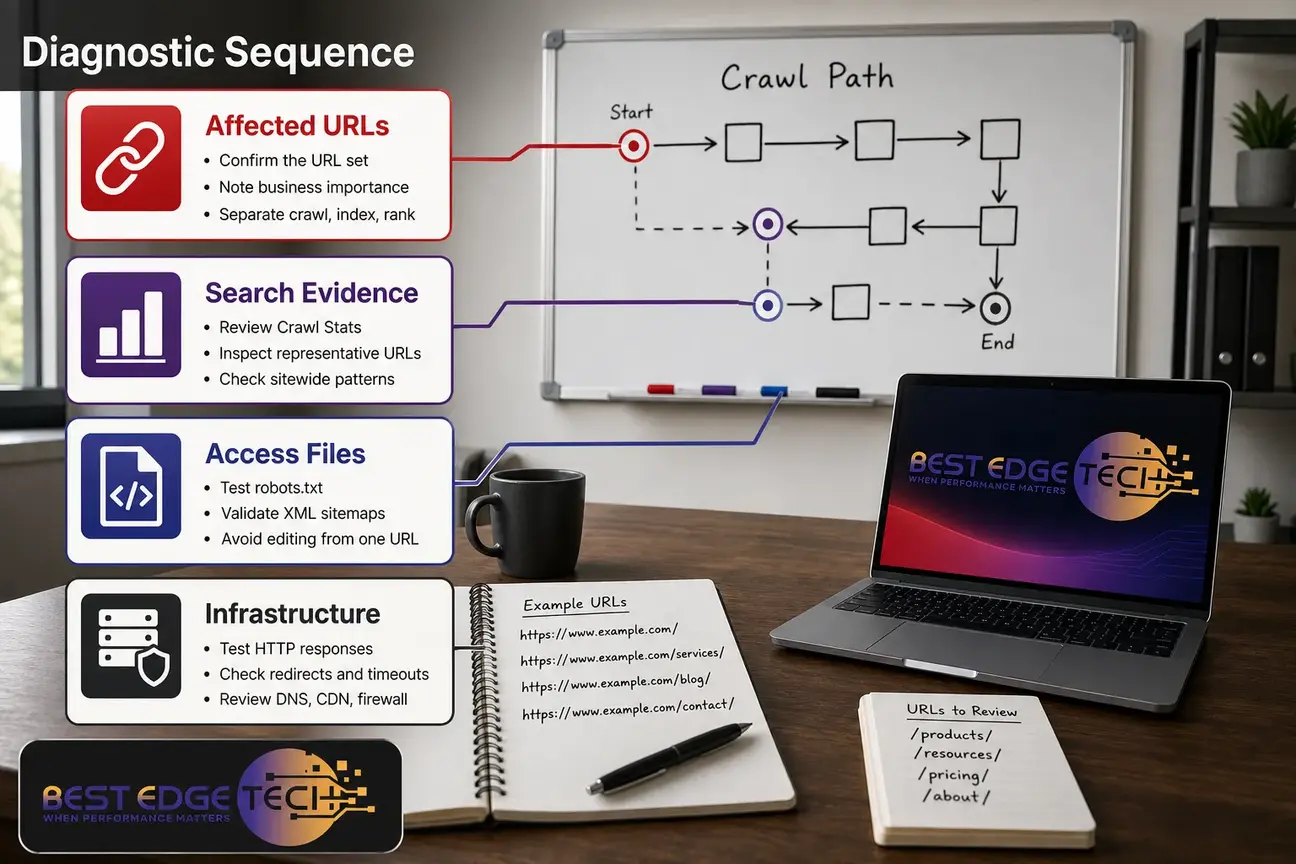
The safest way to diagnose access issues is to move from evidence to infrastructure. Do not edit robots.txt because of one missing URL. Do not blame crawl budget before checking whether the page is blocked, redirected, noncanonical, or missing from internal links.
Use this order:
- Confirm the affected URL set and the business importance of each page.
- Separate crawling, indexing, and ranking symptoms.
- Review Search Console Crawl Stats for sitewide availability patterns.
- Inspect representative URLs with URL Inspection.
- Check robots.txt rules and file availability.
- Validate XML sitemaps.
- Test HTTP responses, redirects, server errors, and timeouts.
- Investigate DNS, CDN, firewall, and bot-management access.
- Review internal links, canonical tags, and indexing directives.
- Assess crawl prioritization and crawl budget after access is confirmed.
- Recheck after changes without promising a specific recrawl or indexing time.
This order is especially useful before a broader SEO audit engagement, such as SEO analysis, because it turns a vague complaint into a defined technical question: which URL class is affected, what is Google seeing, and where is the access or signal breakdown?
If the same evidence repeats across templates, document whether Googlebot not crawling appears alongside crawl errors Search Console data, DNS errors Googlebot, or crawl budget SEO waste. That combination helps developers and marketers work from the same facts.
What to check first in Search Console
Search Console is not a complete server log, but it is the best starting point for most business teams because it shows how Google reports crawling and indexing status for the verified property. Use it before making assumptions based on a browser test, a rank tracker, or a third-party crawler.
How crawl errors Search Console reports should be read
The phrase crawl errors Search Console usually points to one of two needs: sitewide trend review or URL-specific inspection. Start with Crawl Stats to see whether Google reports availability problems, response categories, and crawl activity changes. Google’s own troubleshooting guidance says to use the Crawl Stats report to see Googlebot’s crawling history for the site.
Look for these patterns:
- A sudden drop in crawl requests after a hosting, CDN, firewall, CMS, or deployment change.
- Host status problems that coincide with DNS, server, or robots.txt issues.
- Growth in 4xx or 5xx responses.
- Response-time spikes that align with reduced crawl activity.
- Different behavior by Googlebot type, where Search Console shows it.
Crawl Stats is not a URL-by-URL access log. If you need to prove whether Googlebot requested one specific URL at a specific time, you may need server, CDN, or security logs. That is important when Googlebot not crawling appears limited to one template, a set of redirected URLs, or a security rule.
Do not treat crawl errors Search Console data as a final diagnosis by itself. Treat it as a map of where to look next: host availability, robots.txt access, response codes, DNS resolution, crawl demand, or template-level directives.
Why Googlebot not crawling should be verified first
When Googlebot not crawling is the suspected problem, avoid making content changes first. Verify discovery and access before rewriting copy, replacing a page template, or changing URL structure.
Start with three questions. Is the URL linked from crawlable pages? Is the URL included in a clean sitemap? Can Googlebot fetch the live URL without being blocked by robots.txt, DNS, a firewall, a redirect loop, or a server error?
If Googlebot not crawling affects newly published pages only, discovery may be the first issue. If Googlebot not crawling affects older high-value pages after a deployment, look harder at redirects, robots.txt, noindex settings, firewall rules, and server availability.
Inspect representative URLs one by one
Use URL Inspection for each page in your sample. It can show whether Google knows the URL, whether it is indexed, which canonical Google selected, and whether the live URL can be tested. The tool may also show crawl, page-fetch, indexing, or resource details depending on the URL and property.
When you inspect a URL, ask:
- Is the URL known to Google?
- Is it indexed, excluded, redirected, or canonicalized elsewhere?
- Does the live test fetch the page successfully?
- Is a noindex directive present?
- Does Google choose a different canonical than the one you intend?
- Are important resources blocked or failing?
URL Inspection can request crawling, but it is not an indexing promise. Use the request as a signal after fixing access problems, not as the entire strategy. If the same exclusion appears across many URLs, step back and look for a template, canonical, robots.txt, sitemap, or server pattern.
Is robots.txt blocking Googlebot?
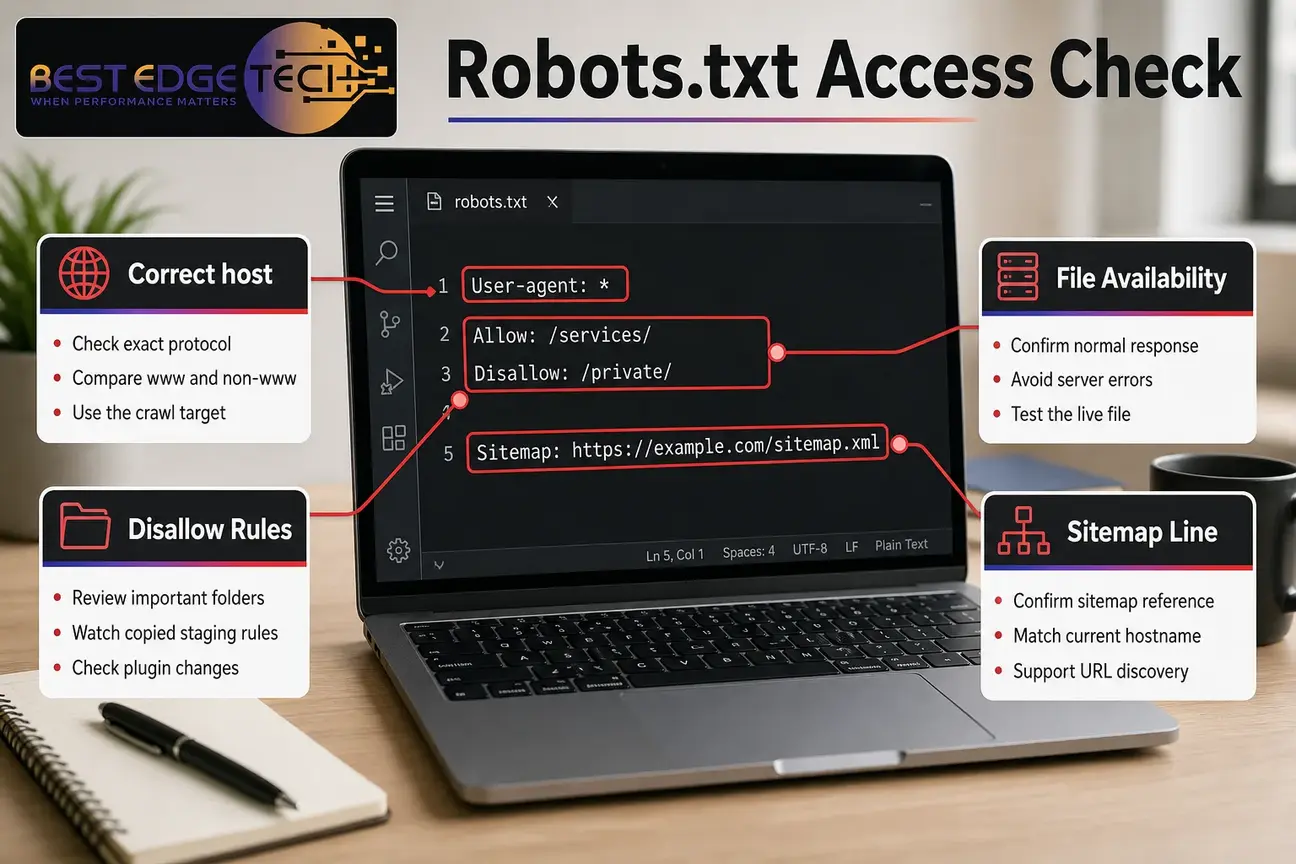
Robots.txt is a small file with large consequences. It tells compliant crawlers which URL paths they may request. A staging rule, copied template, plugin change, or migration oversight can block important directories even when the pages load normally in a browser.
Google explains that robots.txt rules control crawler access to URLs. Check the file at the exact protocol and host Google should crawl, such as HTTPS versus HTTP and www versus non-www. A mismatch between versions can create confusing results.
Review these items carefully:
- Is robots.txt available at the correct host?
- Does it return a normal response rather than a server error?
- Do any Disallow rules cover important folders?
- Are there separate rules for Googlebot or all user agents?
- Did a staging, development, or redesign rule move into production?
- Are sitemap declarations current?
- Do subdomains use different robots.txt rules?
Robots.txt is not the right tool for every indexing problem. Blocking crawling does not always remove a URL already known to Google. If the business goal is to keep a page out of Search, use the appropriate indexing controls and access restrictions for that situation. For medical, legal, or sensitive business content, involve the right internal counsel or compliance team before relying on search controls for privacy or regulatory decisions.
When Googlebot not crawling starts after a launch, compare the current robots.txt file with the prelaunch file. Also check whether crawl errors Search Console data mentions robots.txt fetch issues or host availability issues during the same time period.
Is the XML sitemap helping discovery?
An XML sitemap helps Google discover new or updated pages, but it does not force crawling, indexing, or ranking. It should be a clean map of canonical, indexable URLs that matter to the business.
Google describes sitemaps as a way to tell Google about pages on your site that are new or updated. That makes the sitemap useful for diagnostics: if an important URL is missing, redirected, blocked, noncanonical, or returning an error, the sitemap can reveal the mismatch.
Check whether your sitemap:
- Uses the current HTTPS and hostname version.
- Includes only canonical URLs you want indexed.
- Excludes redirects, 404s, soft 404s, blocked URLs, and parameter duplicates.
- Reflects a recent redesign or migration.
- Uses accurate last-modified information rather than manufactured dates.
- Is submitted and processed in Search Console.
- Is accessible to Googlebot without firewall or authentication barriers.
If sitemap problems are recurring, a focused XML sitemap audit can help determine whether discovery signals match your actual site structure, canonical tags, redirects, and internal links.
For small sites, a sitemap problem often pairs with weak internal discovery. A page buried several clicks deep, orphaned from navigation, or only linked from an old blog post may be less discoverable than a page linked from a relevant service hub. Do not expect a sitemap to compensate for broken architecture.
If crawl errors Search Console reports many sitemap URLs returning redirects or errors, prioritize sitemap hygiene before assuming crawl budget SEO is the main problem. Clean discovery signals make the later diagnosis more reliable.
Are HTTP, server, DNS, or firewall errors stopping Googlebot?
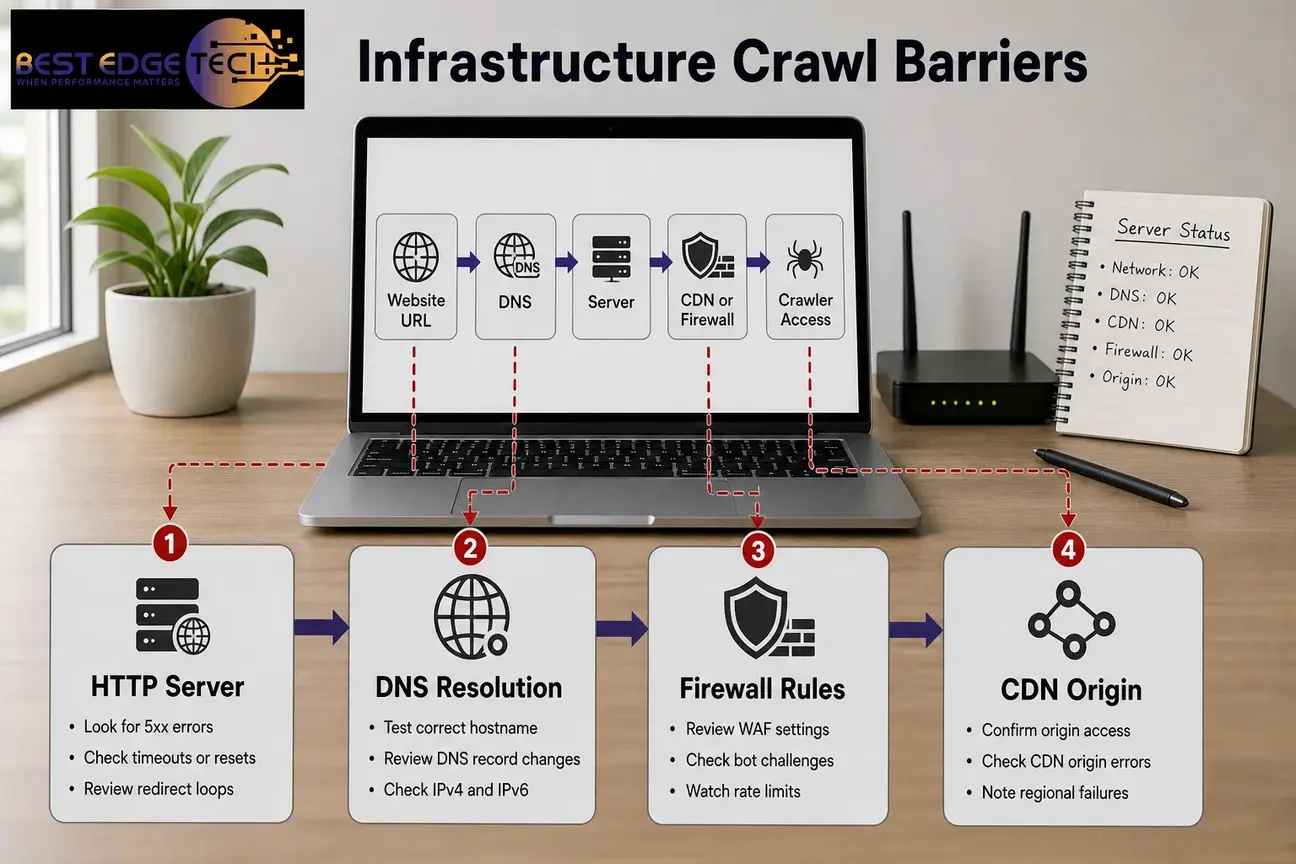
Once Search Console, robots.txt, and sitemaps are reviewed, move to infrastructure. This is where many difficult crawling problems live: intermittent 5xx errors, timeouts, DNS failures, CDN issues, bot challenges, rate limits, or security rules that affect crawlers differently from users.
Check HTTP status and availability
Test the affected URLs and important resources using the same canonical host and protocol you want Google to crawl. A normal browser view is not enough. You need to know the response code, redirect path, final URL, headers, and whether the server behaves consistently.
Look for:
- 5xx server errors.
- Repeated timeouts or connection resets.
- Redirect chains and loops.
- Incorrect 4xx responses.
- Soft-404 behavior.
- Authentication walls or login redirects.
- Slow responses that align with reduced crawl activity.
- Resource failures that prevent the page from rendering properly.
Do not assume that fixing availability will automatically produce more crawling or better rankings. It removes a barrier. Search visibility still depends on discoverability, indexing eligibility, content usefulness, technical consistency, and competition.
If crawl errors Search Console reports more 5xx responses after a deployment, compare that timing with host logs and CDN logs. If Googlebot not crawling appears only during high server load, availability may be the real issue.
How to investigate DNS errors Googlebot reports
DNS errors Googlebot should not be filed away as “just an SEO warning.” DNS resolution is part of whether Googlebot can reach your host. If DNS fails, the crawler may not be able to fetch the page or robots.txt reliably.
When diagnosing DNS errors Googlebot, check:
- Public DNS resolution for the correct hostname.
- Recent nameserver, CDN, or DNS record changes.
- IPv4 and IPv6 behavior.
- TLS certificate validity and hostname coverage.
- HTTP to HTTPS and hostname redirects.
- Whether the CDN can reach the origin server.
- Whether failures are regional, intermittent, or provider-specific.
DNS errors Googlebot can appear after a migration, CDN setup, security hardening, domain move, or hosting change. If the affected URLs also show crawl errors Search Console reports during the same window, treat the timing as evidence worth investigating.
For DNS errors Googlebot, do not rely only on whether the site loads on your office network. Check public DNS behavior, CDN status, certificate coverage, and whether logs show crawler requests reaching the origin server.
Review firewall and bot-management rules
A firewall, CDN, rate limit, or bot-management tool can block Googlebot while the site appears normal to people. This happens when crawler traffic triggers a challenge, security score, country block, IP rule, or request-rate threshold.
Review these systems with your developer, host, or security vendor:
- Web application firewall rules.
- Bot challenges and JavaScript challenges.
- Rate limits and request throttling.
- IP allowlists and denylists.
- Geographic blocking.
- User-agent filters.
- CDN origin errors.
- Security events around the times Crawl Stats shows issues.
Do not trust a user-agent string by itself as proof of Googlebot. Log review and infrastructure verification matter because many bots can claim to be Googlebot. Conversely, blocking too broadly can stop legitimate crawling and create the appearance of Googlebot not crawling even when the underlying pages are fine.
When crawl budget SEO becomes a real issue
crawl budget SEO is often overused as an explanation for small-business indexing issues. Crawl budget is most useful when a site has enough URL volume, duplication, faceted navigation, parameter combinations, or infrastructure limitations that Google must make meaningful choices about what to crawl.
Google defines crawl budget in terms of what Googlebot can crawl and wants to crawl. Its guidance says to review crawling priorities and use crawl budget wisely, especially for large or complex sites.
Before blaming crawl budget SEO, look for wasteful URL patterns:
- Faceted navigation combinations that create many near-duplicate URLs.
- Session IDs or tracking parameters in crawlable links.
- Internal search result pages.
- Calendar archives or infinite date paths.
- Duplicate category, tag, or filter pages.
- Redirect chains from old URLs.
- Low-value auto-generated pages.
- Large sets of URLs blocked after Google already discovered them.
For many smaller sites, Googlebot not crawling a page is more likely to be a discovery, blocking, sitemap, canonical, server, DNS, or firewall problem than a depleted crawl budget. That is a diagnostic priority, not a universal rule. A small site can still have crawl prioritization problems if it generates thousands of low-value URLs or traps crawlers in duplicate paths.
crawl budget SEO becomes more important after access is confirmed. If Google can fetch the site but spends attention on URLs that should not matter, the cleanup may involve internal linking, parameter handling, canonical consistency, sitemap hygiene, redirects, and removing low-value URL spaces from crawl paths.
A practical crawl budget SEO review should separate “Google cannot access the page” from “Google can access the page but has many low-value alternatives.” Those are different problems and should not be fixed with the same change.
What to check after Googlebot can access the page
Access is necessary, but it is not enough. After Googlebot can fetch the URL, review the signals that tell Google which version matters and whether the page deserves indexing.
Start with internal links. Google needs crawlable paths to important pages. Links should use standard HTML anchors, appear in relevant navigation or contextual copy, and point directly to the canonical URL where possible. If priority pages are orphaned or buried, an internal linking audit can help identify pages that matter to the business but receive weak internal support.
Then check canonical signals. Make sure the canonical tag, sitemap URL, internal links, redirects, hreflang or alternate versions where applicable, and preferred hostname all point to the same intended URL. Mixed signals can lead Google to select a different canonical, which may make the desired page look like it is missing.
Review indexing directives. A stray noindex tag, X-Robots-Tag header, or template-level plugin setting can exclude many pages. This is common after redesigns, staging pushes, and CMS changes. If a site was recently rebuilt, compare the live site against a website redesign SEO checklist before assuming Google changed its behavior without a site-side cause.
Finally, evaluate usefulness. Google crawling and indexing systems are not a substitute for helpful content, clear service information, trust signals, structured navigation, and pages that match search intent. An accessible, indexable page still may not rank if it is thin, duplicative, unclear, or poorly aligned with the query.
How to interpret common symptoms
| Symptom | Likely diagnostic path | What not to assume |
|---|---|---|
| URL is unknown to Google | Check internal links, sitemap inclusion, recent publication timing, and whether the page is reachable from crawlable paths. | Do not assume the page is low quality before confirming discovery. |
| URL is crawled but not indexed | Review canonical tags, noindex directives, duplication, page usefulness, and whether Google selected another URL. | Do not call it a crawl failure if Google has already crawled it. |
| Many URLs show server errors | Review hosting, CDN, origin server, deployment logs, and Crawl Stats timing. | Do not solve this with content edits. |
| Important folder is not crawled | Check robots.txt, navigation, authentication, firewall rules, and template-level directives. | Do not assume Google dislikes the topic. |
| Sitemap contains redirected URLs | Update sitemap URLs to canonical final destinations and review redirect chains. | Do not expect the sitemap to force the old URLs into the index. |
| Large site has many duplicate URL variants | Review crawl budget SEO, canonical rules, faceted navigation, parameters, and internal linking priorities. | Do not treat every URL as equally important. |
| Site works in a browser but not for crawlers | Review firewall, CDN, bot management, DNS, and server logs. | Do not rely on a human browser test as the final answer. |
Use this table as a triage aid, not a replacement for evidence. A symptom can have more than one cause: DNS errors Googlebot can overlap with firewall rules, and crawl errors Search Console can overlap with redirects, hosting changes, or robots.txt access problems.
When a focused diagnosis is enough
A focused diagnosis may be enough when the issue affects only a few pages, the site has not recently migrated, Crawl Stats looks stable, and the symptoms point to a narrow cause. Examples include one missing sitemap URL, one accidental noindex tag, one blocked folder, or one redirect chain.
In those cases, fix the specific issue, document the change, request crawling where appropriate, and monitor Search Console. Do not keep changing multiple systems at once. If you edit robots.txt, sitemaps, redirects, content, and canonical tags on the same day, it becomes harder to know which change mattered.
A focused approach is also safer for regulated or trust-sensitive industries. Healthcare practices and law firms should treat SEO changes as marketing and technical work, not legal, clinical, HIPAA, or regulatory advice. When a page involves sensitive claims, professional obligations, or patient or client information, involve the appropriate internal reviewers.
When a broader audit makes sense
A broader audit makes sense when the problem spans templates, infrastructure, URL classes, migrations, or many important pages. It also makes sense when crawl errors Search Console reports align with hosting changes, DNS errors Googlebot, firewall events, or a redesign.
Consider a broader technical review if you see:
- Sitewide drops in crawl activity after a deployment.
- Multiple templates with unexpected noindex or canonical behavior.
- Large numbers of redirected, blocked, or erroring sitemap URLs.
- Recurring 5xx, timeout, DNS, or CDN issues.
- Parameter or faceted navigation creating large duplicate URL spaces.
- A recent domain, platform, CMS, or URL migration.
- Conflicting signals between internal links, sitemaps, canonicals, and redirects.
Best Edge Tech provides SEO analysis and audits for businesses that need a structured technical review rather than guesswork. If you want help narrowing the issue, you can contact Best Edge Tech or call 252-303-0074. Share your website URL, affected URLs, goals, markets served, recent site changes, current traffic or Search Console access, and whether you are considering SEO analysis, SEO consulting, or implementation support.
For teams planning a rebuild, platform change, or new site architecture, technical SEO should be part of the plan before launch. SEO-focused navigation, crawlable links, redirect mapping, sitemap hygiene, and canonical consistency are easier to build into a project than to repair afterward. If the site itself needs structural work, SEO-focused web design may be relevant to discuss as part of the scope.
Recheck changes without promising a timeline
After you fix a crawl access issue, recheck the same URL set. Confirm that robots.txt allows the URL, the server returns the intended response, the sitemap is clean, Search Console live testing can fetch the page, and internal links point to the canonical version.
Then monitor over time. Google does not provide a universal timetable for recrawling or indexing every URL. A crawl request is useful after a fix, but it is not a commitment that Google will crawl immediately, index the page, or show it for a particular query.
The strongest diagnostic notes include before-and-after evidence: URL, issue, source of evidence, change made, date changed, and follow-up status. That record helps business owners, developers, and SEO teams avoid circular conversations when the same issue returns after a plugin update, hosting move, security change, or redesign.
Practical conclusion for business teams
The fastest path through Google crawling problems is not to guess. Start with the affected URLs, determine whether the issue is crawling, indexing, or ranking, then work through Search Console, robots.txt, sitemaps, server responses, DNS, firewalls, internal links, canonical signals, and crawl prioritization in order.
Use crawl budget SEO carefully. It matters for large or complex sites, but it is not the default explanation for every page that fails to appear in Search. For many business websites, the cause is more direct: Google cannot discover the URL, cannot access it reliably, is blocked from it, sees a different canonical, or does not consider it eligible or useful enough for indexing.
Search engines and AI products change often. Check current platform documentation before acting, and treat any result as dependent on your site, market and competition.
Frequently Asked Questions
Is Googlebot not crawling the same as a page not ranking?
No. A page may be crawled but not indexed, or indexed but not shown prominently for a query. Crawling, indexing, and ranking are separate diagnostic states. Confirm which one applies before changing content, redirects, robots.txt, or site architecture.
Does requesting indexing mean Google will index a page?
No. URL Inspection can request crawling, but that request does not promise immediate crawling, indexing, or ranking. Use the request after fixing access or indexing blockers, then monitor Search Console over time.
How can I tell whether Googlebot has visited a page?
Use URL Inspection for page-level status and live testing, and use Crawl Stats for site-level crawling trends. For URL-specific crawl history, server, CDN, or security logs may be needed because Search Console is not a complete URL-by-URL crawl log.
Can robots.txt prevent Google from crawling a page?
Yes. Robots.txt can prevent Googlebot from requesting blocked paths. However, it is not the best method for keeping sensitive or unwanted pages out of Search. Use the right indexing controls or access restrictions for that situation.
Does an XML sitemap force Google to crawl a page?
No. An XML sitemap helps Google discover new or updated URLs, but it does not force crawling, indexing, or ranking. The URL still needs to be accessible, canonical, indexable, internally supported, and useful.
Is crawl budget usually the reason a small business page is not indexed?
Not usually. For many smaller sites, access, internal links, sitemaps, robots.txt, server errors, DNS, canonicals, or noindex directives are more likely places to start. Crawl budget becomes more relevant on larger or more complex sites with many URL variants.
Can a firewall block Googlebot even when the website works for people?
Yes. A firewall, CDN, rate limit, or bot-management rule can affect crawler requests differently from normal browser visits. Confirm the behavior through server, CDN, and security logs rather than relying only on a browser test.